Google Trends
Google Trends is a public web facility by Google that analyzes the popularity of top search queries in Google Search across various regions and languages.
Why Connect Google Trends to Whatsdash?
Integrating Google Trends data with Whatsdash transforms external market interest into contextual metrics, enabling your team to make data-driven decisions on content, marketing, and product development alongside your internal business performance data.
-
Market Trend Spotting: Monitor the search popularity of keywords, products, and competitors to identify emerging trends and avoid declining ones, ensuring your content and marketing stay relevant.
-
Content & SEO Strategy: Use search interest data to plan your content calendar, refine your SEO strategy, and update existing content around current high-interest topics.
-
Cross-Channel Analysis: Blend normalized search interest data with your Google Analytics, social media, and sales metrics to understand how public interest in a topic correlates with on-site engagement and revenue.
📋 Steps to Integrate your Google Trends to Whatsdash
✔️ Navigate to the 'Integrations' page using the Navigation bar.
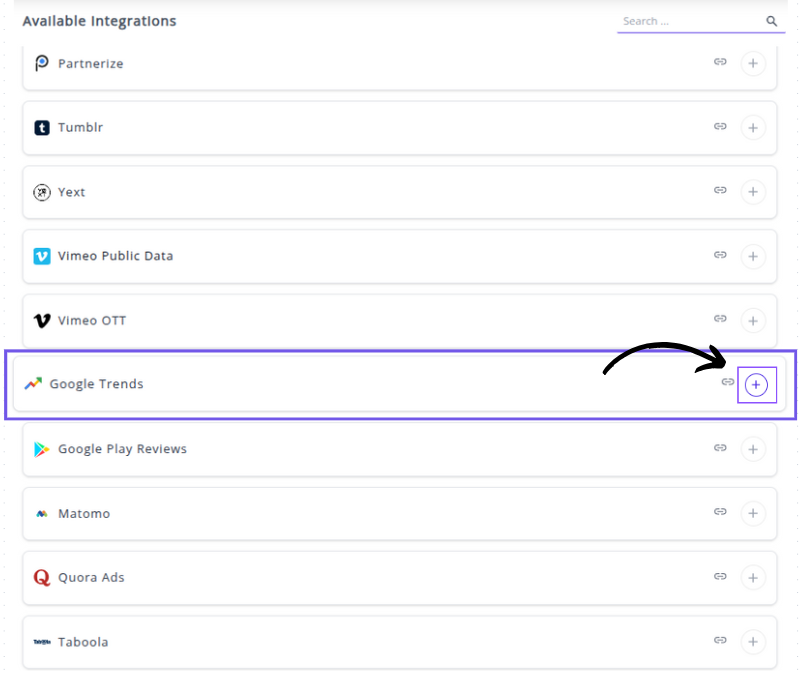
✔️ Select Google Trends from the Available Integrations.

✔️ Click + button to open the Vimeo connection window.
✔️ In the connection pop-up, you will be prompted to enter the following parameters:
Connection Name: Enter a descriptive name for this specific Google Trends connection (e.g., "Seasonal Sales Trends," "Competitor Interest," or "SEO Keyword Analysis").
Query Type: Select the type of trend data you want to retrieve. Options typically include "Interest over time", "Related queries", "Related topics" and so on.
Search Term: Enter the keyword, phrase, or topic you want to track. You can often add multiple terms separated by commas for comparison.
Select Country: Choose the country or region you want to get search interest data for. You can also select "Worldwide" by deafult.
Search Type: Specify the type of search where the trends should be observed (e.g., "Web" for general Google Search, "Image", "YouTube" ,"News" or "Shopping").
Category: Select a relevant category to narrow down the search context and avoid ambiguous results (e.g., "Arts & Entertainment," "Business & Industrial"). "All categories" is the default.
Timezone: Select the timezone for the data collection.
Result Type: Choose the format for the results (e.g., "Top", "Rising").

✔️ Click Next button to save these parameters and establish the connection.
✔️ You can now create or customize dashboards using your Google Trends Metrics and Dimensions by configuring search terms, locations, and time ranges directly within your dashboard widgets.
👉 How to visualize this data in your dashboard, visit the Dashboard Documentation Guide.
🔗 Google Trends Metrics
The table below lists the Google Trends Metrics available through the Whatsdash Google Trends Integration.
| Name | Category | Why it’s Useful |
|---|---|---|
| Interest (%) | Keyword / Metrics | Measures how often a search term is entered relative to total search volume over a specific period — useful to track popularity trends and compare term interest over time. |
🔗 Google Trends Dimensions
The table below lists the Google Trends Dimensions available through the Whatsdash Google Trends Integration.
| Name | Category | Why it’s Useful |
|---|---|---|
| DMA Code | Region | Tracks how a search term trends in a designated market area (DMA) — useful for regional marketing insights. |
| DMA | Region | Shows trends in a designated market area — helps in hyper-local trend analysis. |
| Geo Code | Region | Tracks trends by geographic codes — useful for location-specific insights. |
| Geo | Region | Provides trend insights by geographic area — helps in targeting campaigns geographically. |
| Country | Region | Shows search trends globally or by country — useful for country-level marketing strategies. |
| Country Code | Region | Gives the country code of trend data — useful for standardizing regional analysis. |
| City | Region | Tracks search trends by city — helpful for micro-targeting campaigns. |
| City Code | Region | Identifies city code for trend data — ensures consistency in city-level reporting. |
| Region | Region | Shows trends in specific regions — supports regional trend comparison. |
| Region Code | Region | Provides standardized code for regions — enables integration with other datasets. |
| Search Term | Keyword | The actual keyword or phrase searched — foundational for all trend analysis. |
| Topic Code | Keyword | Code for suggested topics — useful for automatic topic categorization. |
| Topic Title | Keyword | Title of suggested topic — helps understand related topics. |
| Topic Type | Keyword | Type of suggested topic — differentiates between categories (e.g., queries, entities). |
| Related Query | Keyword | Related search queries — helps identify variations and emerging trends. |
| Search Volume | Keyword | Shows the volume of searches — critical for demand analysis. |
| Year | Time | Year of the data — supports time-based trend analysis. |
| Month | Time | Month of the data — helps in monthly trend reporting. |
| Week | Time | Week number — useful for weekly trend tracking. |
| Week(ISO) | Time | ISO week number — ensures standardized weekly reporting. |
| Year Week | Time | Combined year and week — enables weekly trend aggregation. |
| Year Week(ISO) | Time | ISO year-week combination — ensures consistency in weekly trend analysis. |
| Year Month | Time | Year and month — useful for monthly trend analysis. |
| Year Of Week | Time | Year for the specific week — helps align week-based metrics. |
| Year Of Week(ISO) | Time | ISO year of week — ensures standard weekly comparisons. |
| Day Of Month | Time | Day number within a month — supports daily trend tracking. |
| Day Of Week Name | Time | Day name (e.g., Tuesday) — useful for weekday trend patterns. |
| Day Of Week Name(ISO) | Time | ISO-standard weekday name — for consistent weekday reporting. |
| Related News1 Title | News | Title of related trending news — helps contextualize trends. |
| Related News1 URL | News | URL for news — provides direct reference to news source. |
| Related News1 Image | News | News image — visual context for trends. |
| Related News1 Image URL | News | URL of news image — for embedding or display. |
| Related News1 Source | News | Source of news — attribution and credibility check. |
| Related News2 Title | News | Title of the second related news item — additional context. |
| Related News2 URL | News | URL for news — link to source. |
| Related News2 Image | News | Image of news — visual context. |
| Related News2 Image URL | News | URL of image — for embedding/display. |
| Related News2 Source | News | News source — attribution. |
| Related News3 Title | News | Title of third news item — context for trends. |
| Related News3 URL | News | URL of news — reference. |
| Related News3 Image | News | Image of news — visual aid. |
| Related News3 Image URL | News | URL of image — embedding purposes. |
| Related News3 Source | News | Source of news — attribution. |
| Related News4 Title | News | Title of fourth news item — trend context. |
| Related News4 URL | News | URL for news — reference. |
| Related News4 Image URL | News | Image URL — for embedding/display. |
| Related News4 Source | News | Source of news — attribution. |
🔗 Explore More Integrations
Whatsdash supports a wide range of marketing, analytics, and eCommerce integrations to give you a holistic view of your business performance.
👉 Visit the Integrations Page to explore all available connections