Jira
Jira is the leading issue and project tracking software for development, IT, and business teams. By integrating Jira with Whatsdash, you can monitor project progress, track team workload, and analyze issue resolution efficiency alongside your marketing and sales data.
Why Connect Jira to Whatsdash?
Integrating your Jira data into Whatsdash transforms raw project data into executive-level, cross-functional performance dashboards.
-
Cross-Functional Visibility: Blend issue and sprint data with metrics from your marketing , sales , and finance tools to see how project delays impact revenue or how marketing campaigns drive product feature requests.
-
Customized Team Reporting: Get a clear, visual breakdown of your team's throughput, cycle time, and backlog health without needing to navigate complex Jira filters and project boards.
-
Shareable, Simplified Insights: Move beyond Jira's internal dashboards to create universally understandable reports that you can securely share with all stakeholders, including clients and executives who don't have Jira access.
📋 Steps to Integrate your Jira Account to Whatsdash
✔️ Navigate to the 'Integrations' page using the Navigation bar.
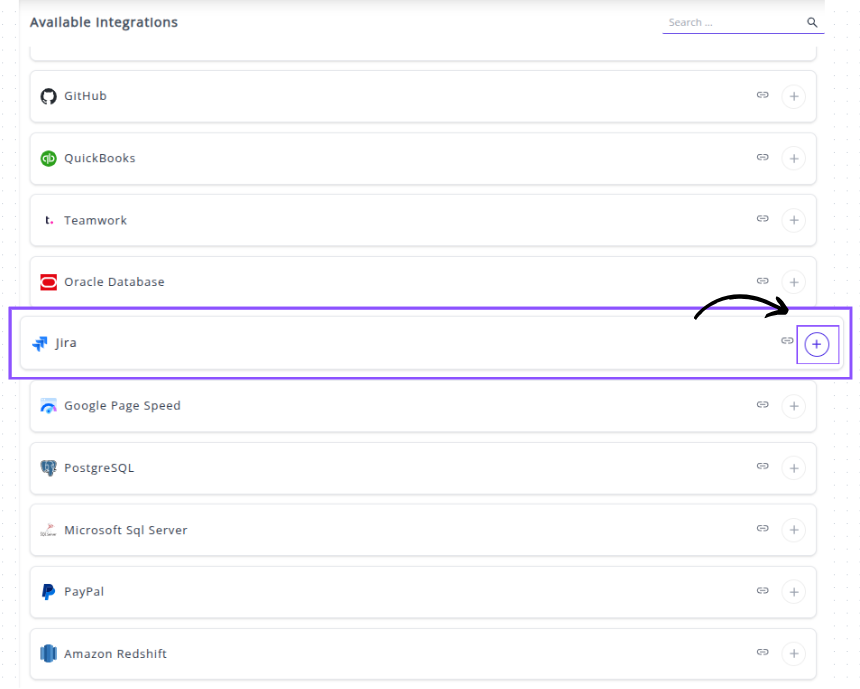
✔️ Select Jira from the Available Integrations.

✔️ Click the + button to open the connection window, which will display the parameters form.
✔️ Enter your connection details:
- Api Token: Paste the API Token.
- Email: Enter the email address associated with the user account you used to generate the API Token.
- Site Url: Enter the base URL .
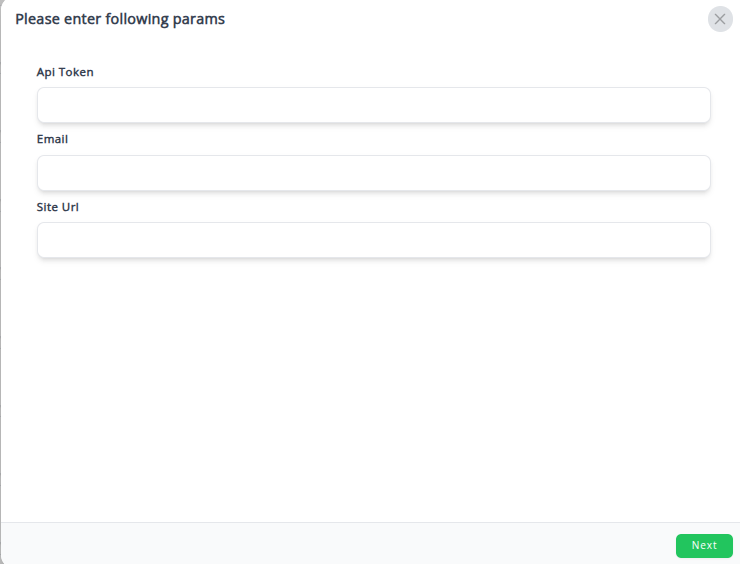
✔️ Click Next button.
✔️ Once authenticated, your Jira Integration will appear in the Connected Integrations list.

✔️ You can now create or customize dashboards using your Jira Metrics and Dimensions.
👉 How to visualize this data in your dashboard, visit the Dashboard Documentation Guide.
🔗 Jira Metrics
The table below lists the Jira Metrics available through the Whatsdash Jira Integration.
| Name | Category | Why it’s useful |
|---|---|---|
| Issues Count | Issue | Shows the total number of issues in a project, useful for workload assessment and reporting. |
| Subissue Count | Issue | Indicates the number of subtasks or child issues under a parent issue, helping track task breakdowns. |
| Watchers | Issue | Displays how many users are following or monitoring an issue, useful for gauging interest or visibility. |
| Votes Count | Issue | Shows the number of votes an issue has received, indicating priority or demand from stakeholders. |
| Project Count | Project | Represents the total number of projects in the Jira site, useful for overall project tracking. |
| Comment Count | Issue | Displays the number of comments on an issue, helping measure collaboration and communication activity. |
🔗 Jira Dimensions
The table below lists the Jira Dimensions available through the Whatsdash Jira Integration.
| Name | Category | Why it’s useful |
|---|---|---|
| Issue Name | Issue | Displays the name or summary of each issue, helping users quickly identify what the issue is about. |
| Issue Type | Issue | Categorizes issues (e.g., Bug, Task, Story) for better project organization and reporting. |
| Issue Status | Issue | Shows the current status of an issue (e.g., Open, In Progress, Done) to track workflow progress. |
| Issue Reporter | Issue | Identifies who reported the issue, useful for communication and accountability. |
| Issue Creation Date | Issue | Indicates when the issue was created, helpful for tracking backlog age and response time. |
| Issue Updation Date | Issue | Displays the last updated date to monitor activity and progress on issues. |
| Issue Priority Name | Issue | Shows the priority level (e.g., High, Medium, Low) to help prioritize work effectively. |
| Issue Priority Id | Issue | Represents the ID of the issue’s priority, useful for data integration or automation. |
| Issue Assignee Name | Issue | Identifies the person assigned to resolve the issue for workload tracking. |
| Issue Creator Name | Issue | Indicates who created the issue, useful for understanding origin and ownership. |
| Issue Project Name | Issue | Displays the project name linked to the issue for context and grouping. |
| Issue Project Key | Issue | Shows the project key (unique identifier), important for referencing issues programmatically. |
| Project Type | Project | Defines the type of project (e.g., software, business, service) to differentiate team workflows. |
| Issue Due Date | Issue | Displays when the issue is due, helping manage deadlines and overdue items. |
| Year | Time | Represents the year value (e.g., 2024), useful for year-based trend analysis. |
| Year Of Week | Time | Shows the year corresponding to a specific week, aiding weekly data grouping. |
| Year Of Week(ISO) | Time | Displays ISO-standard year-week values for consistent time reporting. |
| Year Month | Time | Combines year and month (e.g., 202410), useful for monthly trend insights. |
| Month | Time | Indicates the month number (e.g., 02), for filtering or aggregating monthly data. |
| Year Week | Time | Shows the year-week combination, ideal for weekly tracking and reporting. |
| Year Week(ISO) | Time | Displays ISO-standard year-week codes for alignment with calendar systems. |
| Week | Time | Represents the week number in a year (1–53), used for time-based grouping. |
| Week(ISO) | Time | Provides ISO week numbers for consistent reporting across regions. |
| Day Of Month | Time | Displays the day number (1–31), helpful for daily performance tracking. |
| Day Of Week Name | Time | Shows the day name (e.g., Monday, Tuesday) to analyze patterns by weekday. |
| Day Of Week Name(ISO) | Time | ISO-standard version of the day name, used for international consistency. |
| Date | Time | Full date value (e.g., 20241015) for precise time-based filtering and analysis. |
🔗 Explore More Integrations
Whatsdash supports a wide range of marketing, analytics, and eCommerce integrations to give you a holistic view of your business performance.
👉 Visit the Integrations Page to explore all available connections