Oracle Database
Oracle Database is a powerful, relational database management system (RDBMS) widely used for large-scale enterprise data warehousing, transaction processing, and online analytical processing (OLAP).
Connecting your Oracle Database to Whatsdash allows you to pull critical business metrics from your core data systems (like ERP, CRM, or custom applications) directly into your centralized dashboards.
Why Connect Oracle Database to Whatsdash?
Integrating your Oracle data transforms complex SQL data into simple, visual dashboards for all business users.
-
Real-Time Enterprise Reporting: Create dashboards that reflect the live state of your business by querying core transactional and financial data directly from your Oracle instance.
-
Unified Data View: Centralize key operational data—such as inventory levels, sales orders, and financial summaries—alongside marketing and website performance metrics from other platforms in one place.
-
Custom SQL Metrics: Leverage the power of Oracle SQL by writing custom queries within Whatsdash to define and track specific metrics unique to your business logic and data schema.
📋 Steps to Integrate your Oracle Database to Whatsdash
Integrating a relational database typically requires standard connection parameters. Whatsdash uses a secure, read-only connection method (like JDBC or ODBC) to access your specified tables and schemas.
Step 1: Configure Connection Credentials 🔐
✔️ Navigate to the 'Integrations' page using the Navigation bar.
✔️ Select MySQL from the Available Integrations.
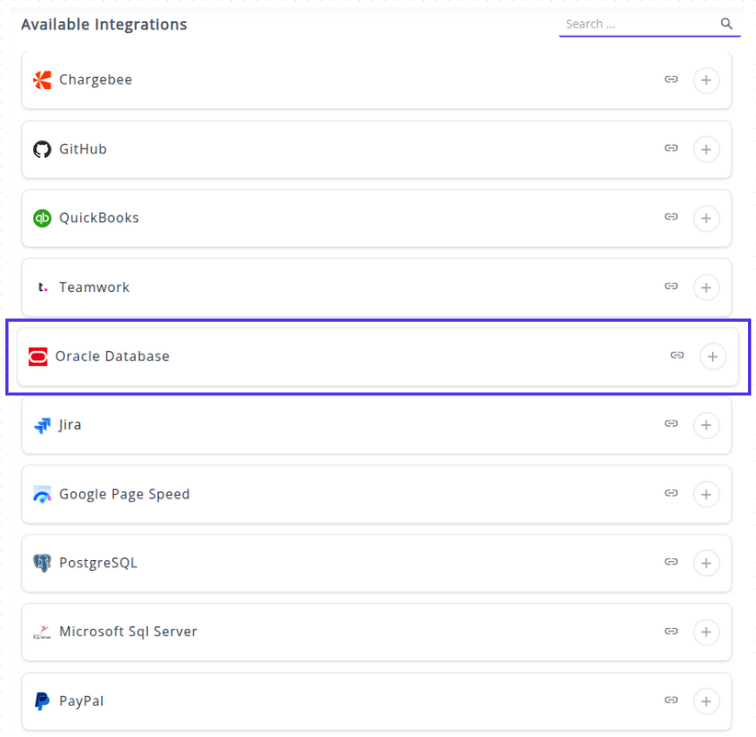
✔️ Click the + button to open the connection configuration window.

✔️ Here are the steps performed to establish the ORacle Database connection in Whatsdash
Step 1: Enter Oracle Connection Parameters 🔐
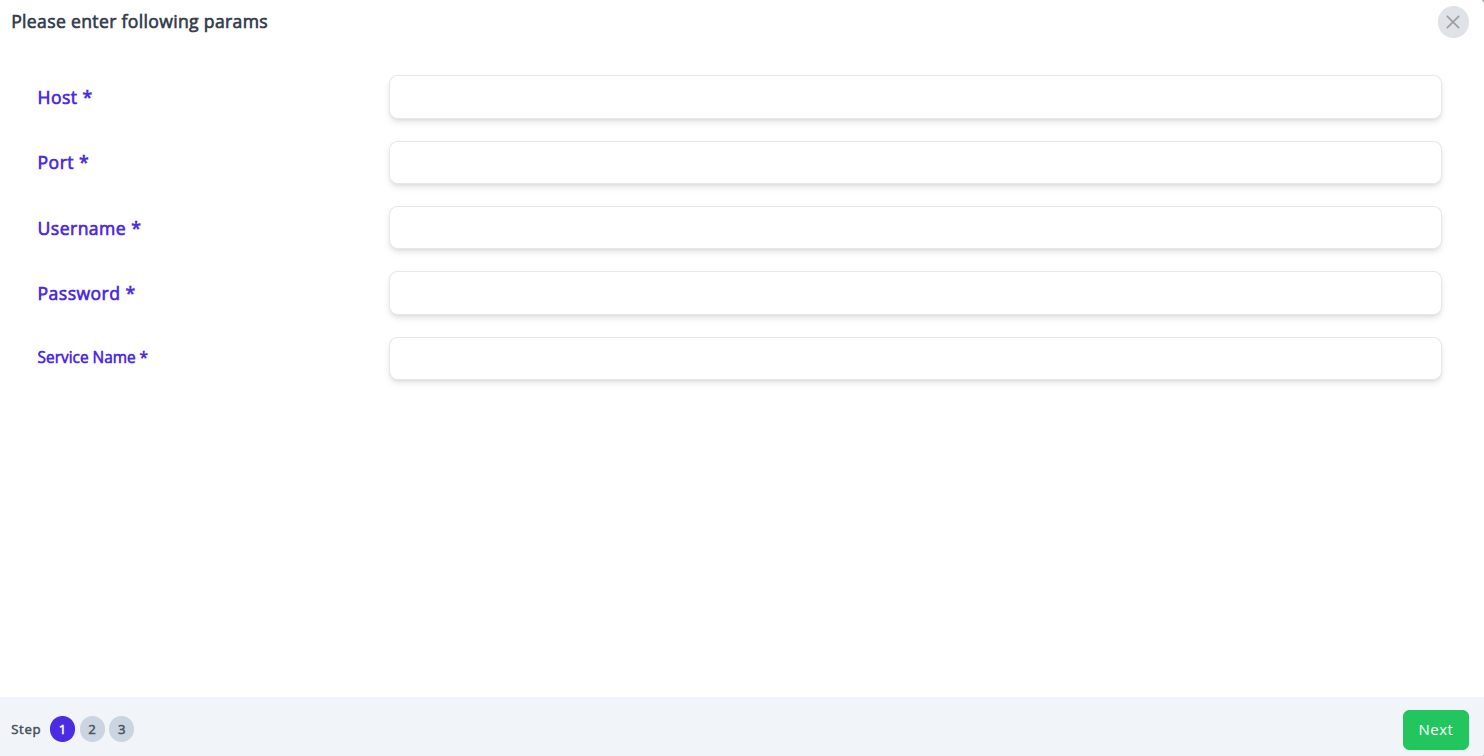
In this first step, you provide the necessary network and authentication details for Whatsdash to locate and log in to your Oracle database instance.
You must fill in the following five mandatory fields marked with an asterisk (*):
Host: Enter the hostname or IP address of your Oracle database server (e.g., oracle-prod-server.corp or 10.0.0.50).
Port: Enter the port number your Oracle database listener is using. The standard default port for Oracle is typically 1521.
Username: Enter the username for the Oracle account that has permissions to read the data you need.
Password: Enter the password associated with the provided username.
Service Name: Enter the Service Name (or potentially the SID) of the specific Oracle database instance you want to connect to. This is the logical name for the database (e.g., ORCLPDB1 or FINANCE_PROD).
Once all five fields are filled, click the Next button to proceed to the next step.
Step 2: Select Tables and Views 📁
You will be presented with a list of available tables and views accessible by the provided username.
Action: Select the specific tables or views (e.g., HR.EMPLOYEES, SALES.ORDER_DETAILS) containing the raw data you wish to use for reporting in Whatsdash.
Click Next to proceed to the final configuration step.
Step 3: Define Dimensions and Metrics (Schema) 📊
In this step, you define how the columns from your selected tables will be interpreted and used in Whatsdash reports and dashboards.
Specify Fields: You are now prompted to specify which columns from your selected tables will be treated as Dimensions and which will be treated as Metrics.
Dimensions: Select columns that categorize or segment data.
Metrics: Select columns that contain numerical values you want to measure, aggregate, or calculate.
Finalize Integration: After defining your core dimensions and metrics, the connection is finalized and saved.
The Oracle integration will now be available in your Connected Integrations list.
🔗 Explore More Integrations
Whatsdash supports a wide range of marketing, analytics, and eCommerce integrations to give you a holistic view of your business performance.
👉 Visit the Integrations Page to explore all available connections