Scheduling
Scheduling allows you to control when and how your Scorecard is delivered. Whatsdash supports two delivery options: Email and Slack, so teams can receive reports in the way that works best for them.
Choosing Delivery Options
In the Delivery Options section, select how you want the Scorecard to be shared. Since different team members may prefer different channels, Whatsdash allows you to deliver the same Scorecard via Email or Slack. You can also configure the reporting period and comparison settings to ensure the Scorecard highlights the most relevant performance data.
Email Scheduling -
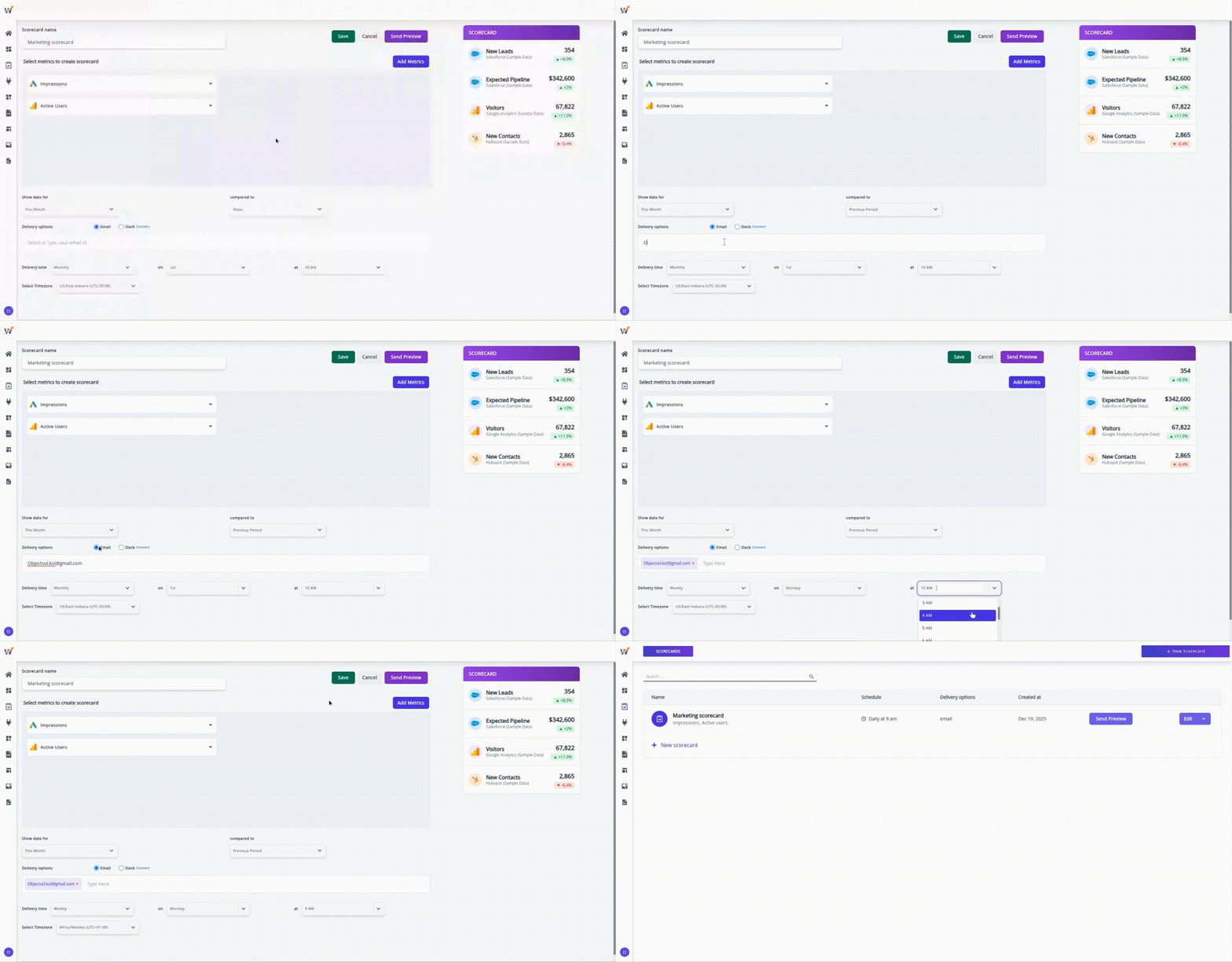
Use Email delivery when you want to send Scorecards directly to inboxes. To schedule a Scorecard via Email:
- Select Email as the Delivery Option
- Enter the email address(es) where the Scorecard should be sent
- Choose the delivery frequency (Daily, Weekly, etc.)
- Set the delivery time and select the appropriate timezone
- Click Save to schedule the Scorecard
Once saved, the Scorecard will be automatically delivered to the specified email recipients at the scheduled time.
Slack Scheduling -
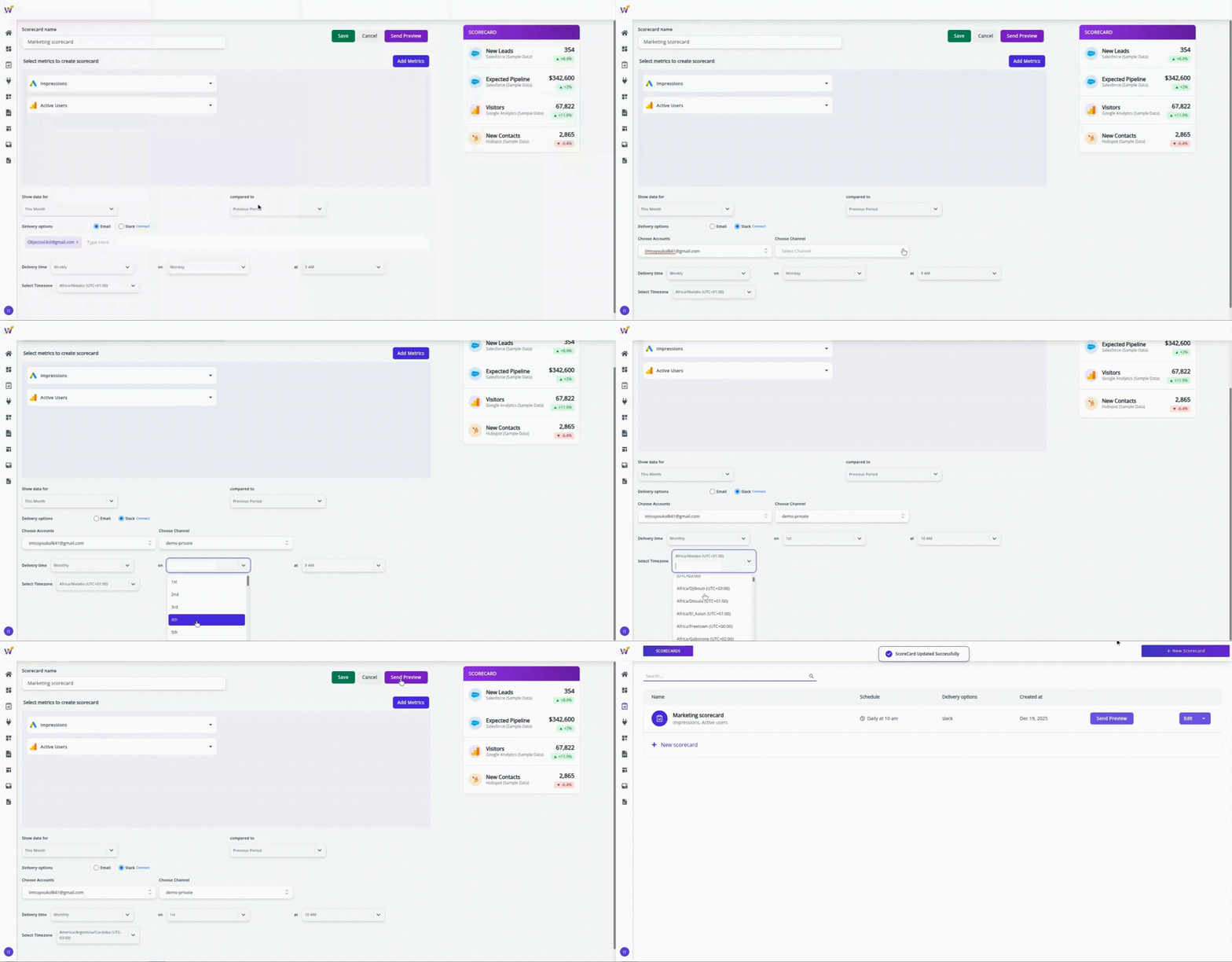
Use Slack delivery to share Scorecards directly in a Slack channel, making performance updates visible to the entire team. To schedule a Scorecard via Slack:
- Select Slack as the Delivery Option
- Choose the connected Slack account
- Select the Slack channel where the Scorecard should be posted
- Choose the delivery frequency
- Set the delivery time and select the appropriate timezone
- Click Save to schedule the Scorecard
After saving, the Scorecard will be automatically posted to the selected Slack channel on the defined schedule.
NOTE - When a user uses Slack scheduling and selects an account, they are required to choose a channel. However, the channel list only shows channels that existed at the time of connection. If a new channel is added later, it does not appear in the list. In this case, the user needs to reconnect Slack and reselect the same workspace for the new channel to become available.