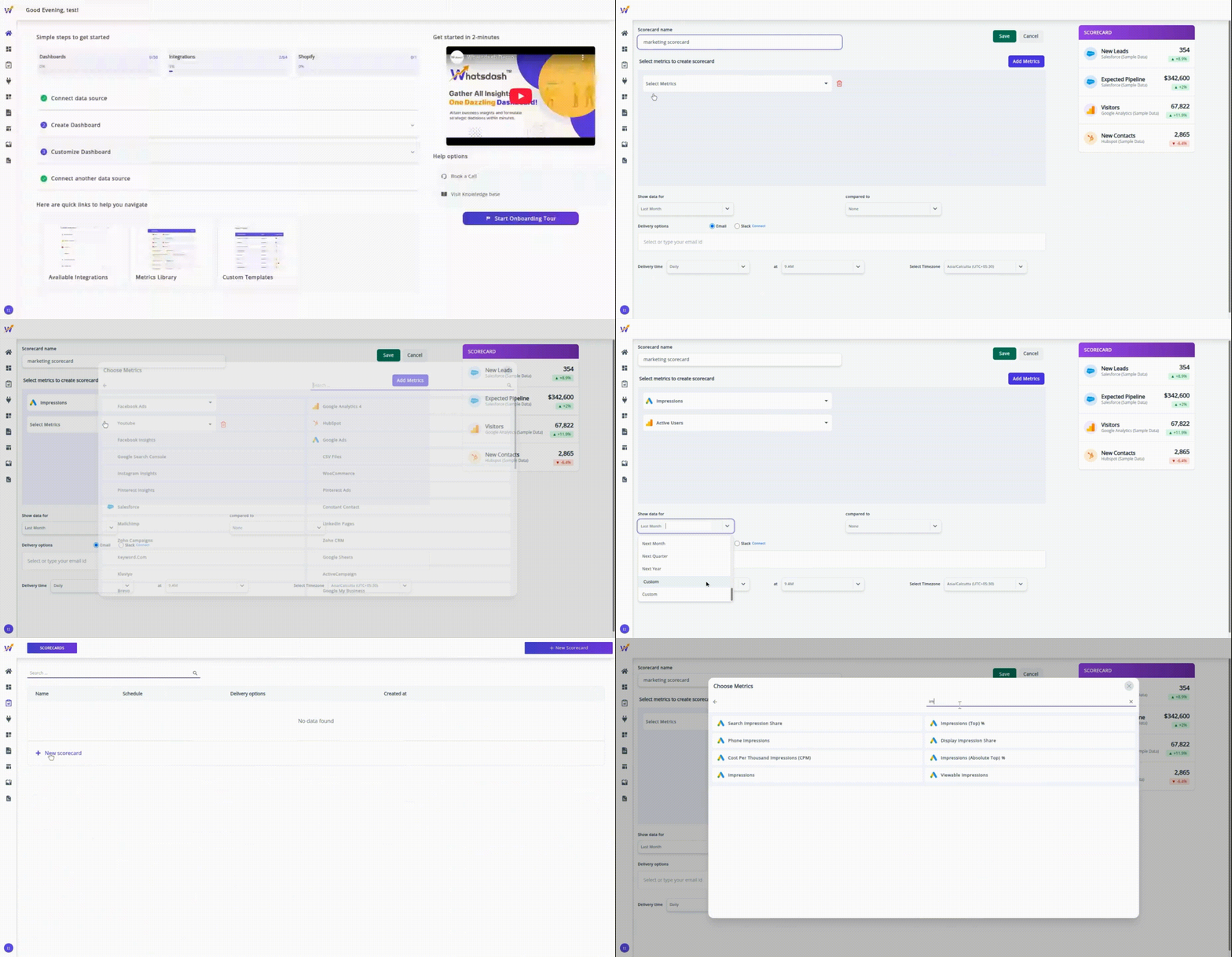
Steps to create a scorecard
1. Navigate to the Scorecards page
From the main menu, go to Home > Scorecards.
2. Create a new scorecard
On the Scorecards page, click the blue + New Scorecard button to begin.
3. Name your scorecard
In the Scorecard Name field, enter a descriptive name for your scorecard.
Example: Marketing Scorecard.
4. Add metrics to your scorecard
Click on the first Metric drop-down list.
If needed, use the Data Source drop-down to filter metrics by a specific data source.
5. Add metrics to your scorecard
-
Click the first Metric drop-down menu to choose a metric you want to track.
-
To make selection easier, you can use the Data Source drop-down to filter metrics by a specific data source (such as Google Analytics or Google Ads).
-
Select the desired metric from the filtered list.
- Example - Adding metrics
In the example shown in the video, we add two metrics:
1. Google Ads
Data Source: Google Ads
Metric: Impressions
2. Google Analytics
Data Source: Google Analytics
Metric: Active Users
You can add multiple metrics to a single scorecard by repeating this process.
6. Select the date range and comparison
Choose the date range for displaying your data. You can select from the following options:
-
Current Date: Today, This Week, This Month, This Quarter, This Year
-
Previous Date: Yesterday, Last Week, Last Quarter, Last Year
-
Future Date: Tomorrow, Next Week, Next Month, Next Quarter, Next Year
-
Custom Range: Select specific start and end dates
You can also choose to compare your data with another period, such as:
-
Previous Period
-
Current Period
-
Custom Period
This helps you analyze performance trends across different time frames.