Overview
The Scorecard feature in Whatsdash helps you track key business metrics in one clean, automated summary. It’s designed to give clients and teams a quick snapshot of performance, trends, and changes—delivered directly to Email or Slack on a schedule. This page explains each section of the Scorecard setup and how it helps clients make better decisions.
Scorecard Name
This field lets you name your scorecard (e.g., Marketing Performance, Sales Daily Report).
How it helps clients:
- Keeps multiple scorecards organized
- Makes reports easy to recognize in Slack or Email
- Helps teams instantly understand the purpose of the report

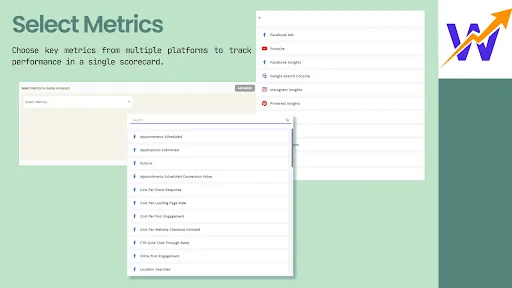
Select Metrics to Create Scorecard
Choose the metrics you want to track in the scorecard. Examples include:
- Event Count
- Event Count per User
- Impressions
- Leads, Revenue, Visitors, Contacts (from connected tools)
How it helps clients:
- Focuses attention on the most important KPIs
- Combines data from multiple platforms into one view
- Removes the need to log into different tools daily
Add Metrics Button
Allows you to add more metrics to the same scorecard.
How it helps clients:
- Builds a single, comprehensive performance summary
- Saves time by avoiding multiple reports
- Enables cross-team visibility (marketing, sales, product)
Data Preview
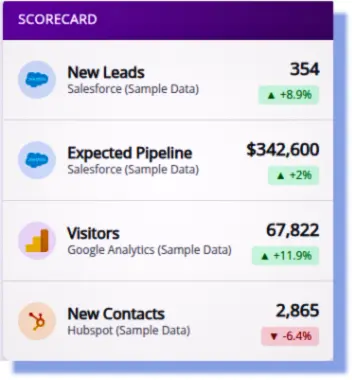
The right panel displays a static demo preview of how your scorecard will appear when it is delivered to Email or Slack. This preview is for visualization purposes only and helps you understand the final layout and format of the scorecard.
- Metric value - Example numbers showing how each metric will be displayed
- Data source - Sample sources like Salesforce, Google Analytics, or HubSpot
- Percentage change - Demo indicators showing increase or decrease compared to the previous period
How it helps clients
- Provides a clear idea of the final scorecard design before sending
- Helps confirm readability and presentation of metrics
- Makes it easy to visualize how executives and stakeholders will view the report
- Sets expectations for how real data will be presented once the scorecard is live
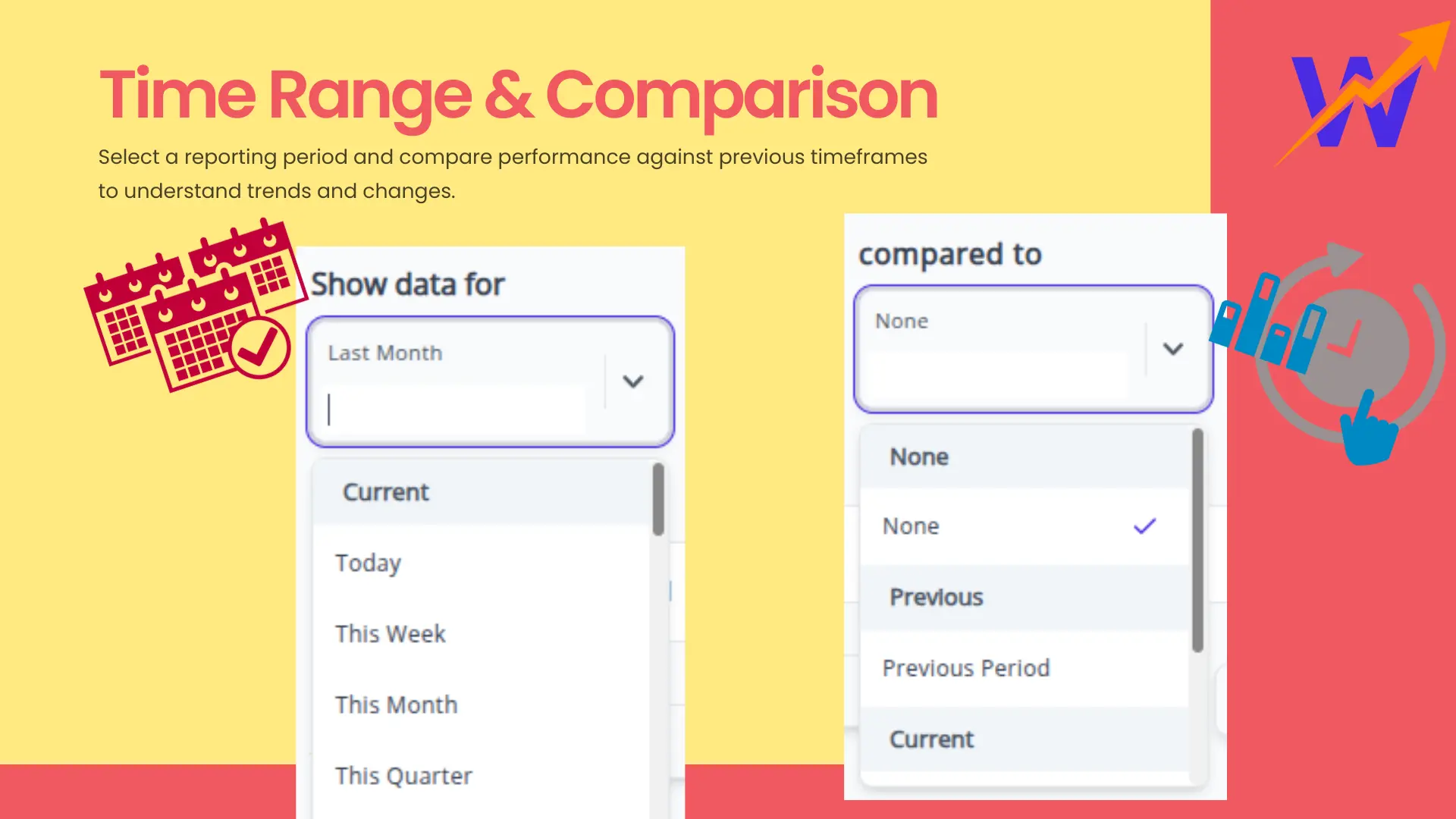
Show Data For (Time Range)
Selects the reporting period (e.g., This Month, Last Week).
How it helps clients:
- Aligns reports with business cycles
- Supports daily, weekly, or monthly reviews
- Enables consistent performance tracking
Compared To (Comparison Period)
Compares current data with a previous time period.
SHow it helps clients:
-
Shows growth or decline instantly
-
Helps identify trends and performance changes
-
Makes reports more actionable and insightful
Delivery Options
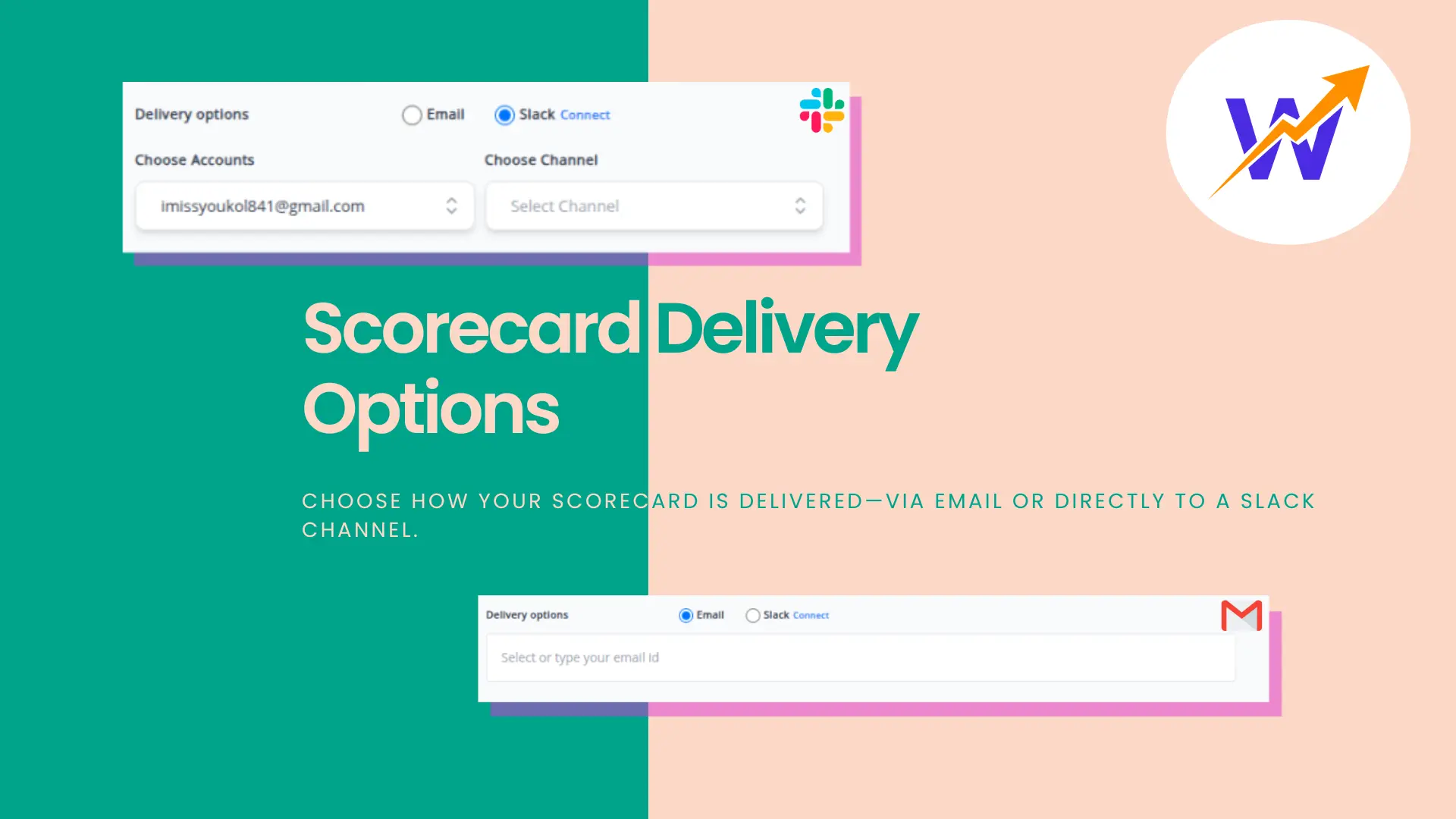
Choose how your scorecard is delivered. You can send it via:
- Email - – Receive scorecards directly in your inbox for easy review and sharing.
- Slack Channel (via Slack Connect) - – Automatically post scorecards to a Slack channel so your team can view and discuss performance in real time.
How it helps clients
- Delivers reports directly where teams already work
- Removes the need for manual reporting and follow-ups
- Ensures scorecards are delivered on time, every time
Report Scheduling
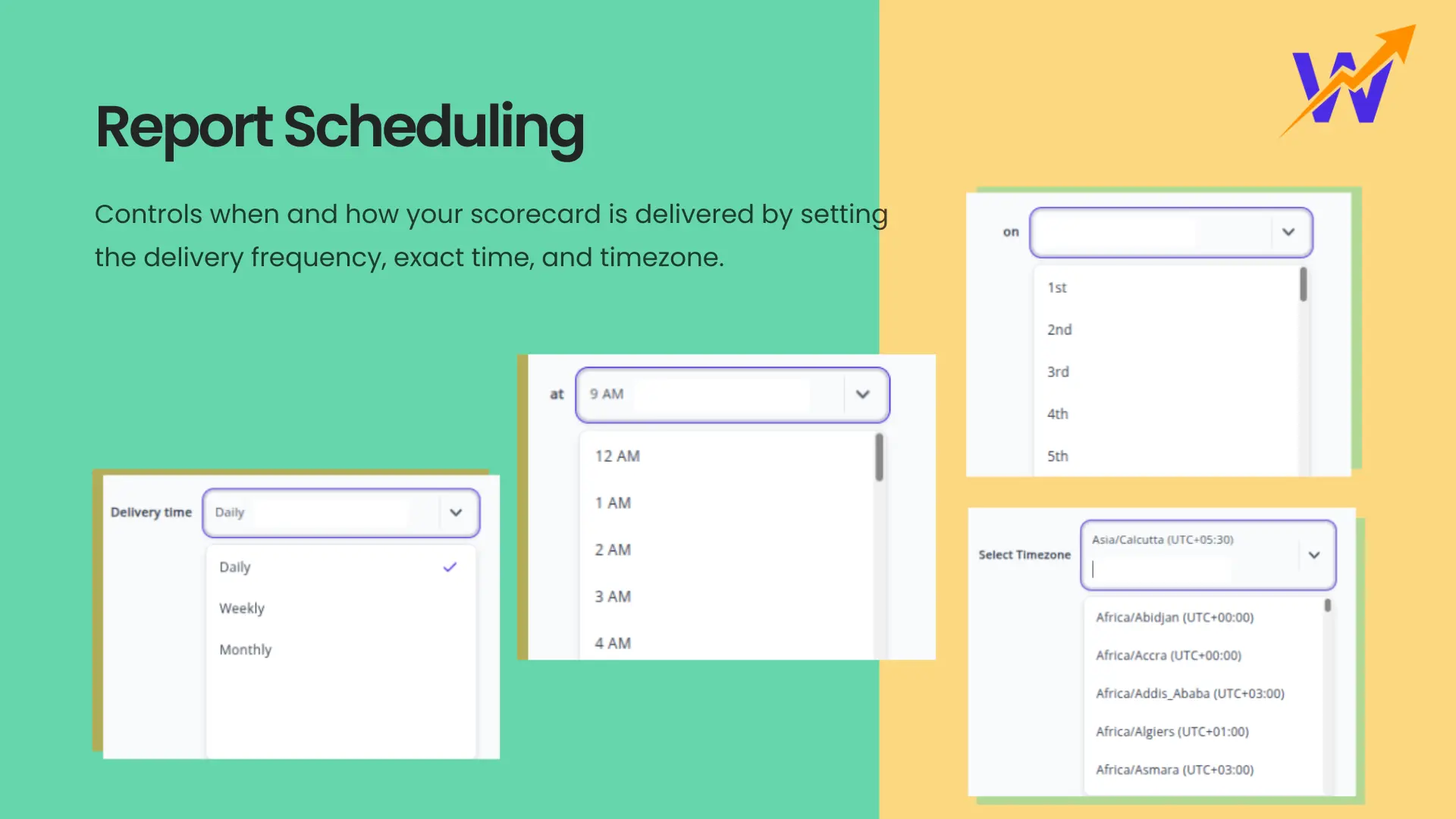
Controls when and how your scorecard is delivered by setting the delivery frequency, exact time, and timezone.
How it helps clients
- Automates daily, weekly, or custom scorecard delivery
- Ensures reports arrive at the right time, before meetings or reviews
- Supports global and distributed teams with accurate timezone handling
- Improves consistency, visibility, and usage of reports
- Eliminates manual scheduling and follow-ups
Save, Cancel & Send Preview
Save
Stores your scorecard configuration for automated delivery.
Cancel
Discards changes safely.
Send Preview
Sends a test scorecard immediately.
How it helps clients:
- Allows testing before automation
- Prevents mistakes in live reports
- Builds confidence in report accuracy

With Whatsdash Scorecards, your data works for you—every day, automatically.