PostgreSQL
PostgreSQL is an advanced, powerful, open-source object-relational database system (ORDBMS) known for its proven reliability, feature robustness, and performance. It is a preferred data store for high-volume applications, analytics, and business intelligence systems.
Connecting your PostgreSQL Database to Whatsdash allows you to pull structured data from your core operational and analytical tables directly into your centralized dashboards for immediate business insight.
Why Connect PostgreSQL to Whatsdash?
Integrating your PostgreSQL data transforms raw SQL tables into clear, actionable business insights for all users.
-
Direct Operational Insight: Pull real-time, mission-critical metrics on inventory levels, subscription revenue, application usage, or performance data stored within your PostgreSQL tables and schemas.
-
Custom SQL Metrics: Write Custom Queries directly within Whatsdash to define and track specific metrics essential to your business logic, leveraging PostgreSQL's advanced SQL features like window functions and JSONB support.
-
Data Blending & Cross-Source Analysis: Seamlessly blend financial, sales, or product data from your PostgreSQL database with marketing data from platforms like GA4, Facebook Ads for a holistic view of business performance.
📋 Steps to Integrate your PostgreSQL Database to Whatsdash
Connecting a relational database requires a direct, secure connection. Whatsdash uses standard protocols to access your specified schemas and tables with read-only permissions.
✔️ Navigate to the 'Integrations' page using the Navigation bar.
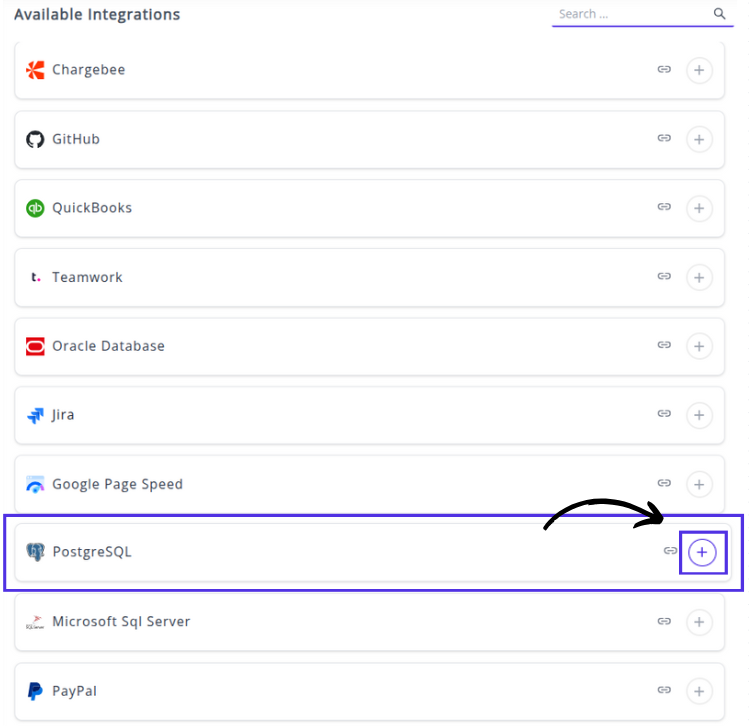
✔️ Select PostgreSQL Database from the Available Integrations.
 ps2
✔️ Click the + button to open the connection configuration window.
ps2
✔️ Click the + button to open the connection configuration window.
✔️ Enter your connection details in the form: Step 1: Enter your PostgreSQL Accountt credentials for the connection:
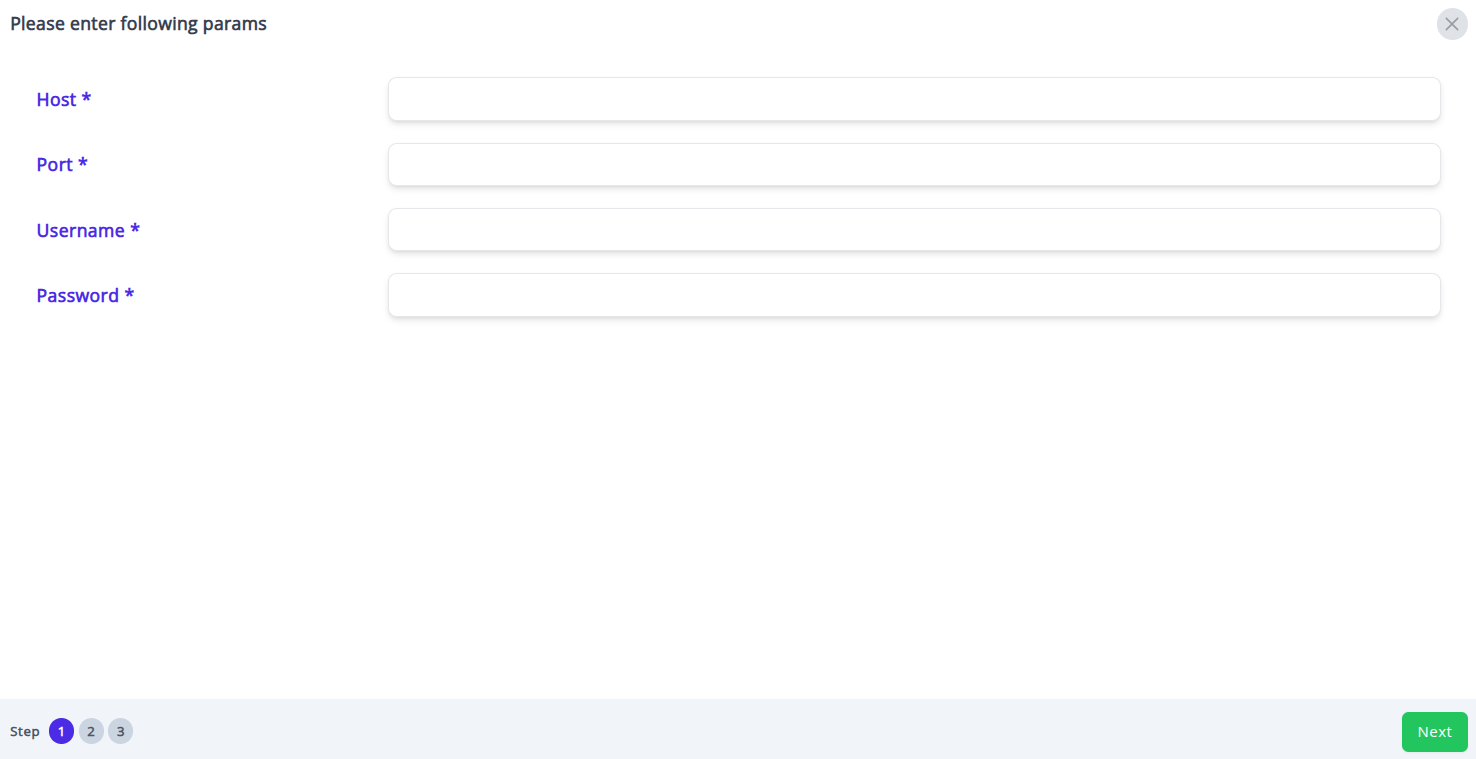
*Host : Enter the Host Name or IP Address of your PostgreSQL server.
*Port : Enter the Port Number used for PostgreSQL connections (e.g., the default 5432).
*Username : Enter the User Name with read-only privileges on the database.
*Password : Enter the Password for the specified user.
Step 2: Select Tables and Views 📁
You will be presented with a list of available tables and views accessible by the provided username.
Action: Select the specific tables or views (e.g., HR.EMPLOYEES, SALES.ORDER_DETAILS) containing the raw data you wish to use for reporting in Whatsdash.
Click Next to proceed to the final configuration step.
Step 3: Define Dimensions and Metrics (Schema) 📊
In this step, you define how the columns from your selected tables will be interpreted and used in Whatsdash reports and dashboards.
Specify Fields: You are now prompted to specify which columns from your selected tables will be treated as Dimensions and which will be treated as Metrics.
Dimensions: Select columns that categorize or segment data.
Metrics: Select columns that contain numerical values you want to measure, aggregate, or calculate.
Finalize Integration: After defining your core dimensions and metrics, the connection is finalized and saved.
✔️ Once successfully authenticated, your PostgreSQL Integration will appear in the Connected Integrations list.
🔗 Explore More Integrations
Whatsdash supports a wide range of marketing, analytics, and eCommerce integrations to give you a holistic view of your business performance.
👉 Visit the Integrations Page to explore all available connections