Slack
Slack is a channel-based messaging platform that centralizes internal communication, workflows, and tools into a single environment, allowing teams to collaborate more effectively.
Connecting Slack to Whatsdash allows you to track team activity, measure channel engagement, and monitor the volume and type of conversations occurring, providing a unique view of operational effectiveness and internal marketing/support performance.
Why Connect Slack to Whatsdash?
Integrate your Slack data with Whatsdash to gain visibility into how your teams are collaborating and how external communication impacts your business.
-
Measure Internal Engagement: Track which channels are most active, which messages are getting the most responses, and understand the general flow of team communication.
-
Monitor Support/Lead Channels: If you use Slack for customer support or lead notifications, you can track the volume of incoming issues or leads over time, linking this internal activity to external metrics like ticket resolution time or lead conversion rate.
-
Identify Knowledge Gaps: Analyze the frequency of specific keywords or recurring questions to identify areas where new documentation or training is needed.
📋 Steps to Integrate your Slack account to Whatsdash
✔️ Navigate to the 'Integrations' page using the Navigation bar.
✔️ Select Slack from the Available Integrations.
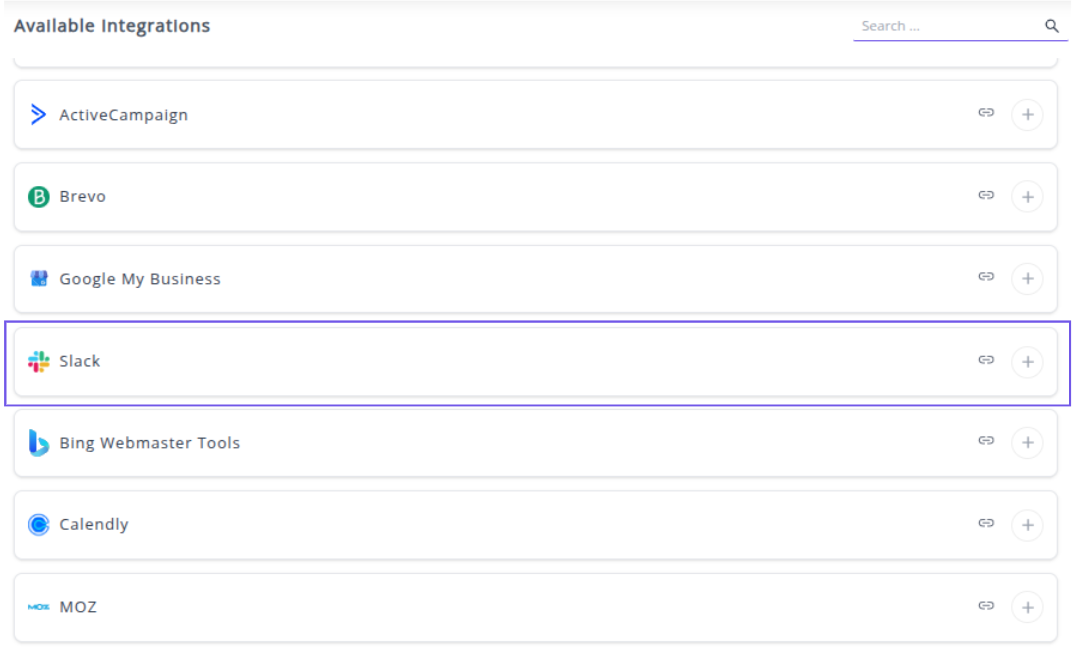
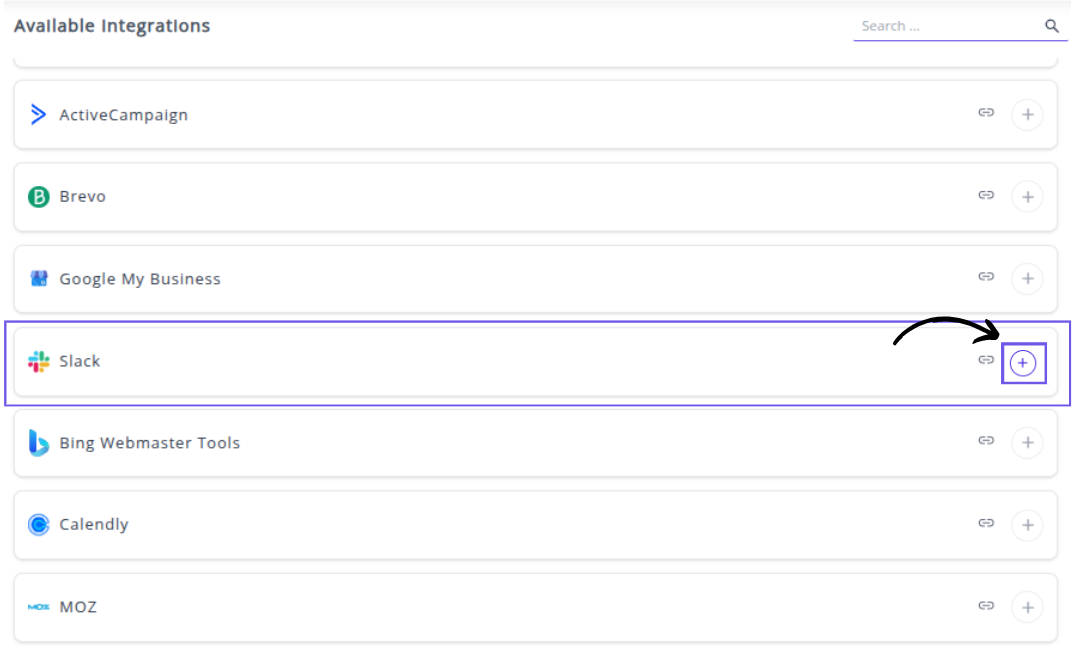
✔️ Click the + button to open the Slack authorization window.
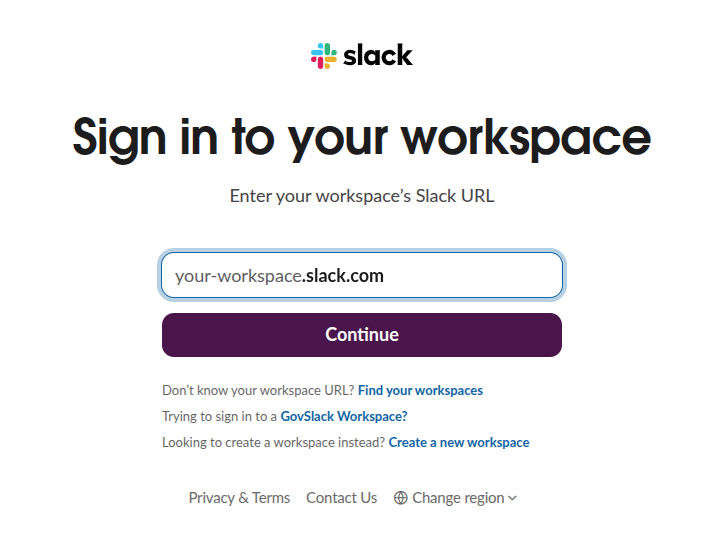
✔️ You will be redirected to the Slack authentication page. Select the Slack workspace you wish to connect to Whatsdash.
✔️ Once authenticated, you will be directed back to Whatsdash. Your Slack Integration will appear in the Connected Integrations list.
✔️ You can now create or customize dashboards using your Slack Metrics and Dimensions.
👉 How to visualize this data in your dashboard, visit the Dashboard Documentation Guide
🔗 Slack Metrics
The table below lists the Slack Metrics available through the Whatsdash Slack Integration.
| Name | Category | Why It’s Useful |
|---|---|---|
| User Count | Users | Shows total users in Slack, helping monitor workspace size and growth. |
| Channel Member Count | Channel | Indicates number of members in a channel, useful for engagement and access management. |
| Channel Count | Channel | Tracks total number of channels, useful for organizing workspace structure and managing active communication channels. |
🔗 Slack Dimensions
The table below lists the Slack Dimensions available through the Whatsdash Slack Integration.
| Name | Category | Why It’s Useful |
|---|---|---|
| User Name | Users | Identifies the user in Slack for communication tracking. |
| User Real Name | Users | Shows the actual name of the user for accurate identification. |
| User First Name | Users | Useful for personalization in messages or reports. |
| User Last Name | Users | Helps in sorting and referencing users accurately. |
| User ID | Users | Unique identifier for users, essential for API operations. |
| User Status | Users | Tracks availability or activity state of a user. |
| User Title | Users | Useful to understand user roles and responsibilities. |
| User Email | Users | Needed for notifications, integrations, and user contact. |
| Is Admin | Users | Identifies users with administrative privileges. |
| Is Owner | Users | Determines which users can manage the workspace. |
| Is Primary Owner | Users | Identifies the main owner responsible for the workspace. |
| Is Restricted | Users | Useful to manage limited-access users. |
| Is Ultra Restricted | Users | Indicates users with minimal permissions. |
| Is a Bot | Users | Helps differentiate between humans and bots in analytics. |
| Is Deleted | Users | Tracks inactive or removed users. |
| Timezone | Users | Useful for scheduling messages or meetings across regions. |
| Phone | Users | Optional contact for external communication. |
| Is Email Confirmed | Users | Verifies email authenticity for notifications. |
| 24px Image URL | Users | Small avatar for UI displays or lightweight lists. |
| 192px Image URL | Users | Medium avatar for detailed user interfaces. |
| 512px Image URL | Users | High-quality avatar for profiles or reports. |
| Channel Name | Channel | Identifies the Slack channel for messages or analytics. |
| Channel Topic | Channel | Helps understand the channel’s purpose or subject. |
| Channel Purpose | Channel | Provides context for communication or reporting. |
| Channel Created Date | Channel | Tracks channel age and activity history. |
| Channel Archived | Channel | Indicates inactive channels to manage workspace cleanliness. |
| Channel External Shared | Channel | Shows whether a channel is shared with external users. |
| Channel ID | Channel | Unique identifier for API operations and integrations. |
| Channel Previous Names | Channel | Tracks renames for historical reference and auditing. |
🔗 Explore More Integrations
Whatsdash supports a wide range of marketing, analytics, and eCommerce integrations to give you a holistic view of your business performance.
👉 Visit the Integrations Page to explore all available connections